
How to Set Up Spine 2D Animation in Unity: A Step-by-Step Guide

Want to add fluid, professional-grade 2D animations to your Unity game? Spine is the industry's top choice — and getting it running in Unity is easier than you think. This guide walks you through the entire setup process, from installation to playing your first animation in-game.
What You'll Need Before Starting
A working Unity project (compatible with Unity 2017.1 through Unity 6000.3+)
A Spine license (Essential or Professional)
Exported Spine assets: skeleton data (.json or .skel.bytes), atlas header (.atlas.txt), and texture (.png)
Version matching: Spine 4.2+ runtimes are NOT compatible with assets exported from Spine 4.1 or earlier
Step 1: Install the Spine-Unity Runtime
You have three options to get the Spine runtime into Unity:
Option A: Unitypackage (Fastest)
Download the .unitypackage from the official Spine website and drag it directly into your Unity Project panel. Done. This is the easiest method for most developers.
Option B: Unity Package Manager (UPM)
Go to Window > Package Manager > Add package from git URL and add the spine-csharp, spine-unity, and Spine Examples packages using the official Git URLs. Note: example scenes must be copied from the package directory to Assets to avoid read-only errors.
Option C: Git Clone
Clone the spine-runtimes repository and manually copy the required folders into your Unity Assets directory. This gives you the most control but requires more manual setup.
Step 2: Import Your Spine 2D Animations into Unity
This is where most beginners trip up. Here's the golden rule:
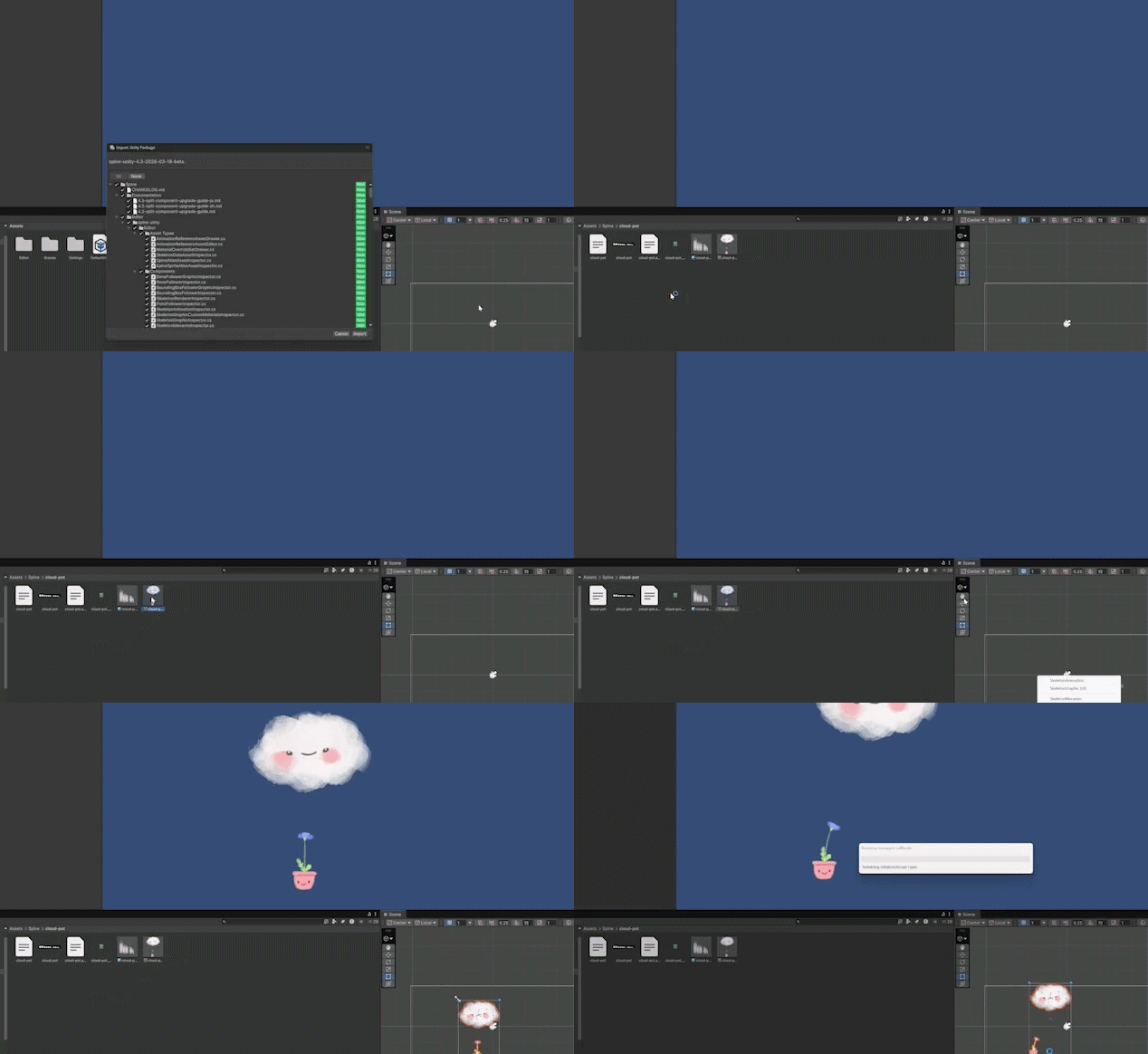
Drag ALL exported files (.json/.skel.bytes, .atlas.txt, and .png) into the Unity Project panel at the same time. Do NOT import them one by one.
When you drop them all at once, Unity's Spine importer automatically generates the SkeletonDataAsset and SpineAtlasAsset files. Import them one at a time and you'll get "Missing Atlas" errors — a common frustration that's easily avoided.
Critical: Make sure your atlas file has the .atlas.txt extension — Unity won't recognize a raw .atlas file.
Step 3: Add a Skeleton to Your Scene
Spine gives you three component options depending on your use case:
SkeletonAnimation — Best for gameplay. Uses MeshRenderer for top performance and maximum control. This is what you want 90% of the time.
SkeletonGraphic — Best for UI elements. Works with Canvas and RectMask2D for health bars, portraits, and menu animations.
SkeletonMecanim — If you prefer Unity's Animator Controller workflow. Works but runs at roughly half the performance of SkeletonAnimation.
Simply drag the SkeletonDataAsset from the Project panel into your Scene to create a new GameObject with the appropriate component.
Step 4: Control Animations with Code
Here's where the real magic happens. You control Spine animations through the AnimationState property:
SetAnimation(track, name, loop) — Play an animation immediately on a specific track
AddAnimation(track, name, loop, delay) — Queue an animation to play after the current one
TimeScale — Adjust playback speed (0.5 = half speed, 2.0 = double speed)
TrackEntry entry = skeletonAnimation.AnimationState.SetAnimation(trackIndex, "walk", true);Critical mistake to avoid: NEVER call SetAnimation inside Update() every frame. This resets the animation to frame 1 constantly, making your character appear frozen. Instead, track your character's state and only call SetAnimation when the state changes.
Step 5: Handle Events and Mixing
Spine's event system lets you trigger game logic at precise moments in your animations — footstep sounds, particle effects, damage frames. Subscribe to events using C# delegates:
Start — Animation begins playing
Complete — Animation finishes one loop
Event — Custom events (footsteps, attack hits) triggered at specific frames
For coroutines, Spine provides custom yield instructions like WaitForSpineAnimationComplete and WaitForSpineEvent — incredibly useful for cinematic sequences and ability chains.
 var track = skeletonAnimation.state.SetAnimation(0, "talk", false);
 yield return new WaitForSpineAnimationComplete(track);
Performance Tips That Actually Matter
Use SkeletonAnimation over SkeletonMecanim — benchmarks show 67fps vs 27fps in stress tests with hundreds of skeletons
Export as binary (.skel.bytes) instead of JSON for faster loading and smaller files
Enable SRP Batching with URP shaders to slash draw calls dramatically
Use UpdateMode to reduce updates for off-screen or distant characters
Pack textures into a single atlas for SkeletonGraphic (UI) to avoid multi-renderer overhead
Common Pitfalls and Quick Fixes
Purple shaders? You're using Built-In shaders in a URP project. Install the spine URP shaders package.
Invisible skeletons? Check if you're flipping on X/Y axis with a shader that has backface culling. Spine shaders use Cull Off.
Washed-out colors? Your project is likely in Linear color space using PMA settings. Switch to Gamma or re-export with Straight Alpha.
Dark borders on sprites? Mismatch between PMA export and Unity material settings. Match the Straight Alpha toggle.
You're Ready to Animate
That's everything you need to go from zero to running Spine animations in Unity. The setup takes about 15 minutes once you know the workflow, and from there you unlock the full power of skeletal animation in your game — physics, procedural control, skin swapping, and buttery-smooth transitions.
Start with SkeletonAnimation, export in binary, and remember the golden rule: import all your files at once. Everything else will fall into place.


Comments